customize panel ubuntu 11.10


Ubuntu DesktopUbuntu includes a top panel and a bottom panel by default. If you prefer to keep only one panel at the bottom just like the Windows Taskbar, then these are the steps to follow:
  1. Delete the bottom panel: right-click over it and click "Delete This Panel".
  2. Move the top panel to bottom: right-click over it, select "Properties" and change Orientation from "Top" to "Bottom".
  3. Add running program buttons: right-click the panel, select "Add to Panel", scroll down and select "Window List", click "Add".
  4. Replace the Menu Bar ("Applications-Places-System") with the "Main Menu" to save space in the panel:
    1. Right-click the "Menu Bar" and select "Remove From Panel".
    2. Right-click the panel, select "Add to Panel" and choose "Main Menu", click "Add".
    3. Right-click the items (Firefox, etc) and untick "Lock to Panel".
    4. Right-click the added "Main Menu", select "Move" to relocate it to the far left.
These are basic changes. The panels are much more flexible than the Windows Taskbar in that many items in the panels can be easily added, removed or configured.
   The Main Menu shows the "Lock Screen", "Log Out" and "Shut Down" items if you remove the "Indicator Applet Session" item (which shows your username and the shutdown button to the right of the panel). These three items are hidden from the Main Menu when the Indicator Applet Session item is on the panel.
   If you need to restore the panels to the original state, enter the following commands into the Terminal and re-start the system:
  1. sudo gconftool-2 --shutdown
  2. sudo rm -rf .gconf/apps/panel
  3. sudo pkill gnome-panel
   At any point if your customized desktop settings caused a problem and you wish to reset all back to their defaults, then enter this command sudo rm -rf .gnome .gnome2 .gconf .gconfd .metacity in the Terminal, log out and log back in to the system.

Source : http://www.techsupportalert.com/content/ubuntu-tips-and-tricks.htm
Which Desktop Environment Do You Use in Ubuntu 11.10? [Poll]

Roll up, roll up: it’s poll time!
This week’s poll question comes by courtesy of reader ‘Andy’, who’s interested to know how many Ubuntu 11.10 users are using Unity and how many are using GNOME Shell.
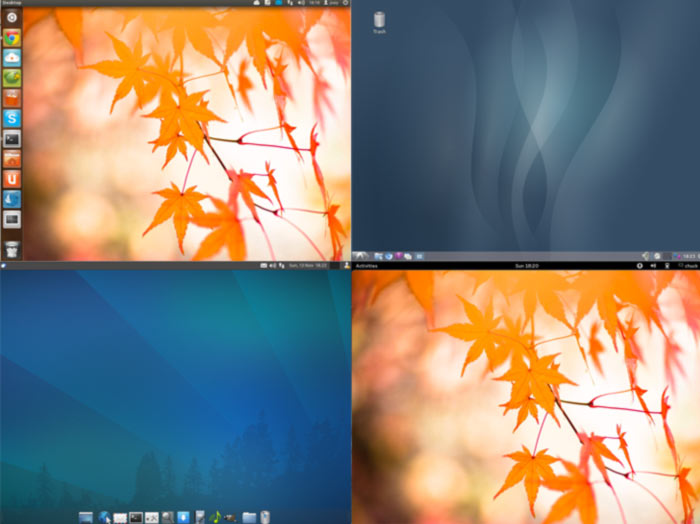
Now, in the interest of fairness I’ll throw LXDE, XFCE, KDE and Pantheon into the options ring too. But do note that this poll concerns Ubuntu 11.10 and not 10.04, 9.04 or anything else. As wuch GNOME 2.x is not included as an option.
Four different desktop environments
So: Which desktop environment do you use as your default in Ubuntu 11.10?
Ubuntu 11.10: Which Desktop Environment are you using?

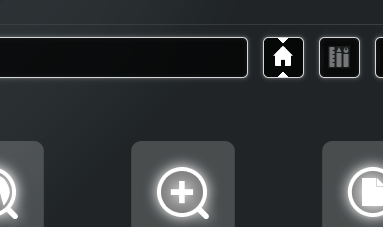
Better Positioning Lenses within the Dash (mockups)


Another day and another set of Unity mock-ups. 
This time from the hand of Ubuntu user staticd, who wonders whether the position of the ‘Lens bar’ – which appears at the bottom of the Dash in Ubuntu 11.10 – could be better placed - could be better placed.
I think they could be. Having to ‘travel’ to the bottom of the Dash to change lens, then back up to the search bar, and then back to the bottom to switch back to a different Lens is minorly annoying.
This annoyance will be partly rectified in Ubuntu 12.04 as Lenses are planned to be ’draggable’ from the Dash and onto the Launcher.
But back to the Dash: staticd mocked up and posted some examples of alternative Lens positions to the Ayatana mailing list: -
Where would you like to see Lenses placed within the Dash? 
Source : omgubuntu.co.uk

5 System Monitoring Tools for Ubuntu


Whether you’re resource-conscious, investigating a system slowdown, or, like me, plain nosey, Ubuntu makes it easy to keep an eye on CPU, RAM and other hardware information.
Below are five different ways to monitor system resource usage in Ubuntu – from indicator-applets to included applications…

Indicator-SysMonitor

Indicator-SysMonitor does a little, but does it well.
Once installed and run, it displays CPU and RAM usage on your top panel. Simple.
Indicator Sys Mem
The applet sports a minimal amount of customisation options such as the order in which items appear on the panel and their refresh rate.

Configure Indicator Sys Monitor

Conky Set up

Conky, aside from being a headache for many users, nevertheless offers up an almost endless variety of ways to display and view system resource usage.
We’ve shown off many slick set-ups in the past, just use our ‘conky‘ tag to browse through them.
I particularly like Reloj Conky as it’s small and to the point: -
Reloj Conky in Ubuntu 11.10

Screenlet

The use of Screenlets – small desktop-based widgets – isn’t quite as high as it once was but there are still a number of good looking and useful widgets available that are worth making use of.
Amongst them are a bunch of differently styled CPU and RAM monitors: -

‘Top’

The above suggestions all assume that you want to see what’s eating your resourcesall the time. Chances are you just want to check in now and again when things feel a bit slow or when things go wrong.
The terminal is capable of showing you running processes via the ‘Top’ command.
All you need to do is open a terminal, whether on your desktop  or, if things have frozen by pressing CTRL+ALT+F1 through F12, and entering the ‘top’ command.
top command in an Ubuntu terminal
You choose how many processes are displayed by pressing ‘n‘ (lowercase) and entering a number. 0 is the default; this fits as many processes as it can onto the screen – so the bigger the terminal the more processes you’ll see.
You can order the results, too: -
  • P orders by CPU usage (default)
  • T sorts by time
  • A sorts by age (newest first)
  • M orders items by RAM usage

‘System Monitor’

Lastly, if nothing above tickles your fancy, you could also resort to the default System Monitor application
It displays a variety of easy-to-gauge overviews – from processes to resource usage – that make it the go-to tool for occasional resource-peeking.
GNOME System Monitor
And, unlike the rest of the options in this list, it’s the only one that offers up a direct way to kill/manage processes.

Source: omgubuntu.co.uk